Install Hermes
Lifebot runs on Hermes, so Hermes goes on first.
Follow our Hermes setup guide for the workshop: it walks you through downloading Hermes and connecting an AI model.
Hermes is the engine. Lifebot is the thing you'll actually talk to. You need both, and this is the part that makes the next steps quick.
Step by step
Install on a Mac
Option 1: Install on macOS
Install Hermes 5 mins
Download Hermes Desktop from hermes-agent.nousresearch.com/desktop. It's free. Open it and let it finish setting up. If Hermes offers to set up a model, you can do it now or skip it; Lifebot asks you again in its own setup.
Prefer the command line? Use the official install guide.
Unzip the download 1 min
Find
lifebot-kit-macos.zipin your Downloads folder and double-click it. A folder namedlifebot-kitappears next to it. Open that folder.Double-click
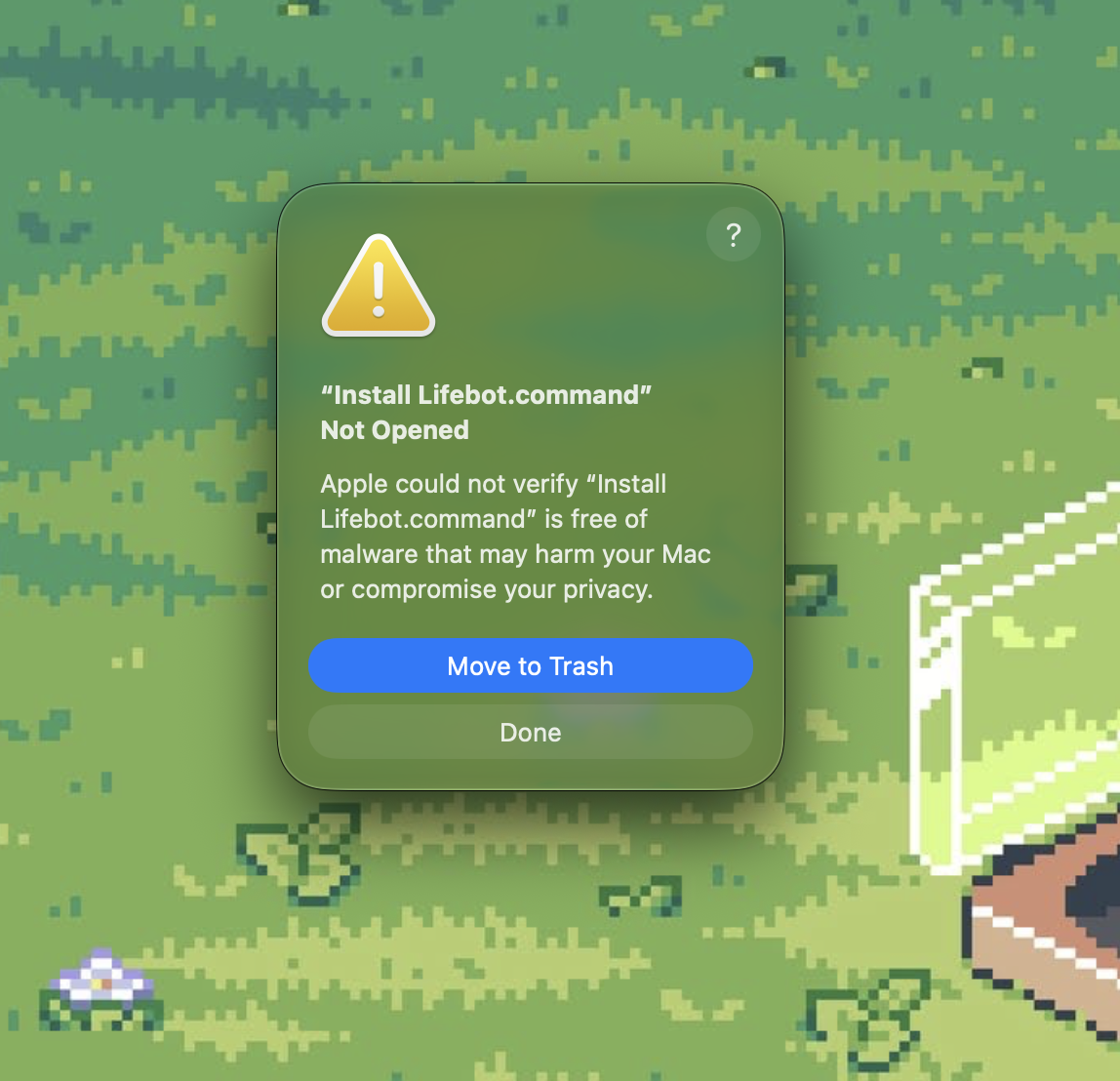
Install Lifebot.command1 minThe first time, your Mac might block it with a message "Install Lifebot.command" Not Opened or can't be opened because Apple cannot check it for malicious software. This is Gatekeeper, your Mac's protection for apps from outside the App Store. Click Done (not Move to Trash).
Allow it in System Settings 1 min
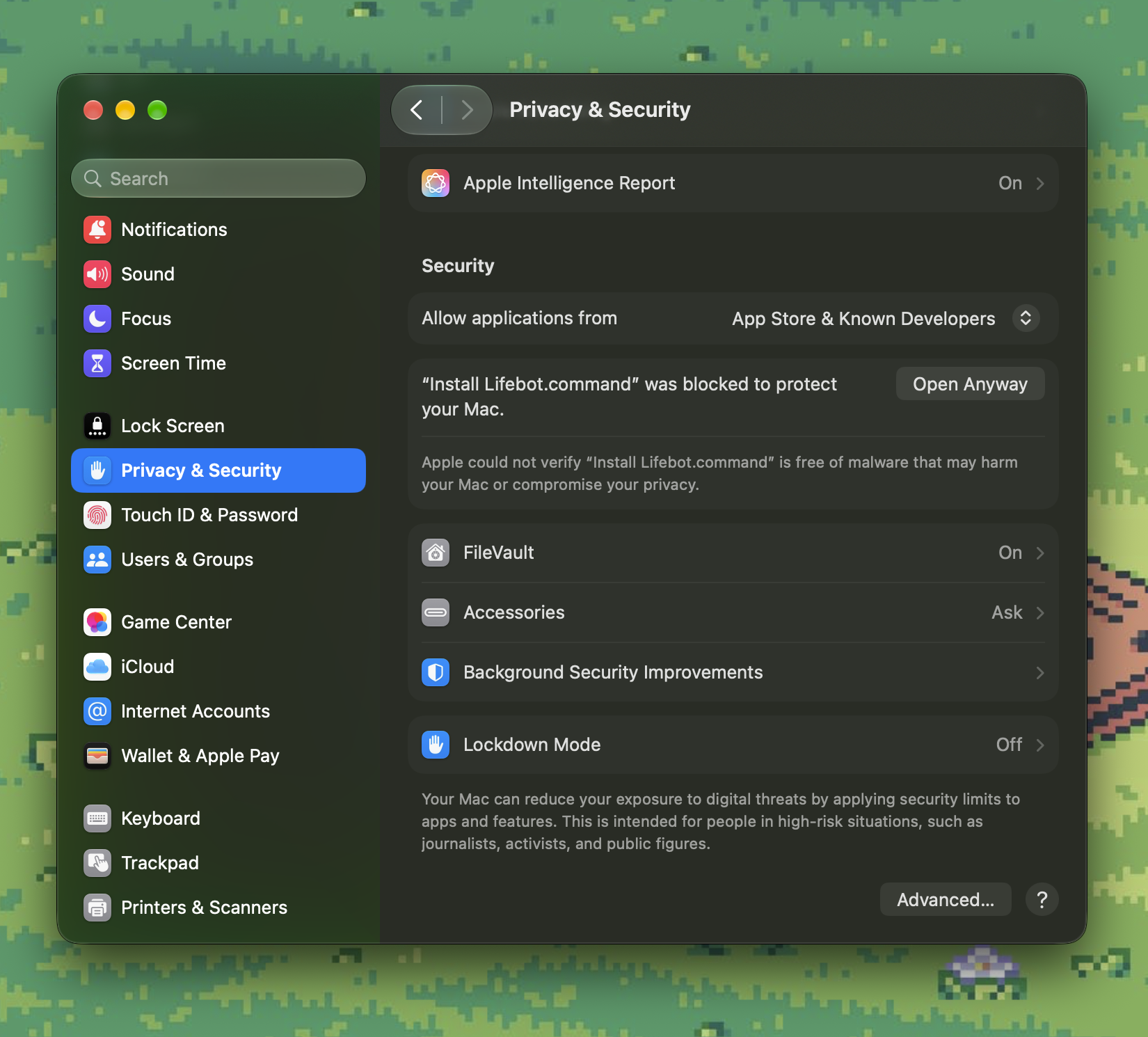
- Open the Apple menu → System Settings → Privacy & Security.
- Scroll down to Security. You'll see "Install Lifebot.command" was blocked to protect your Mac.
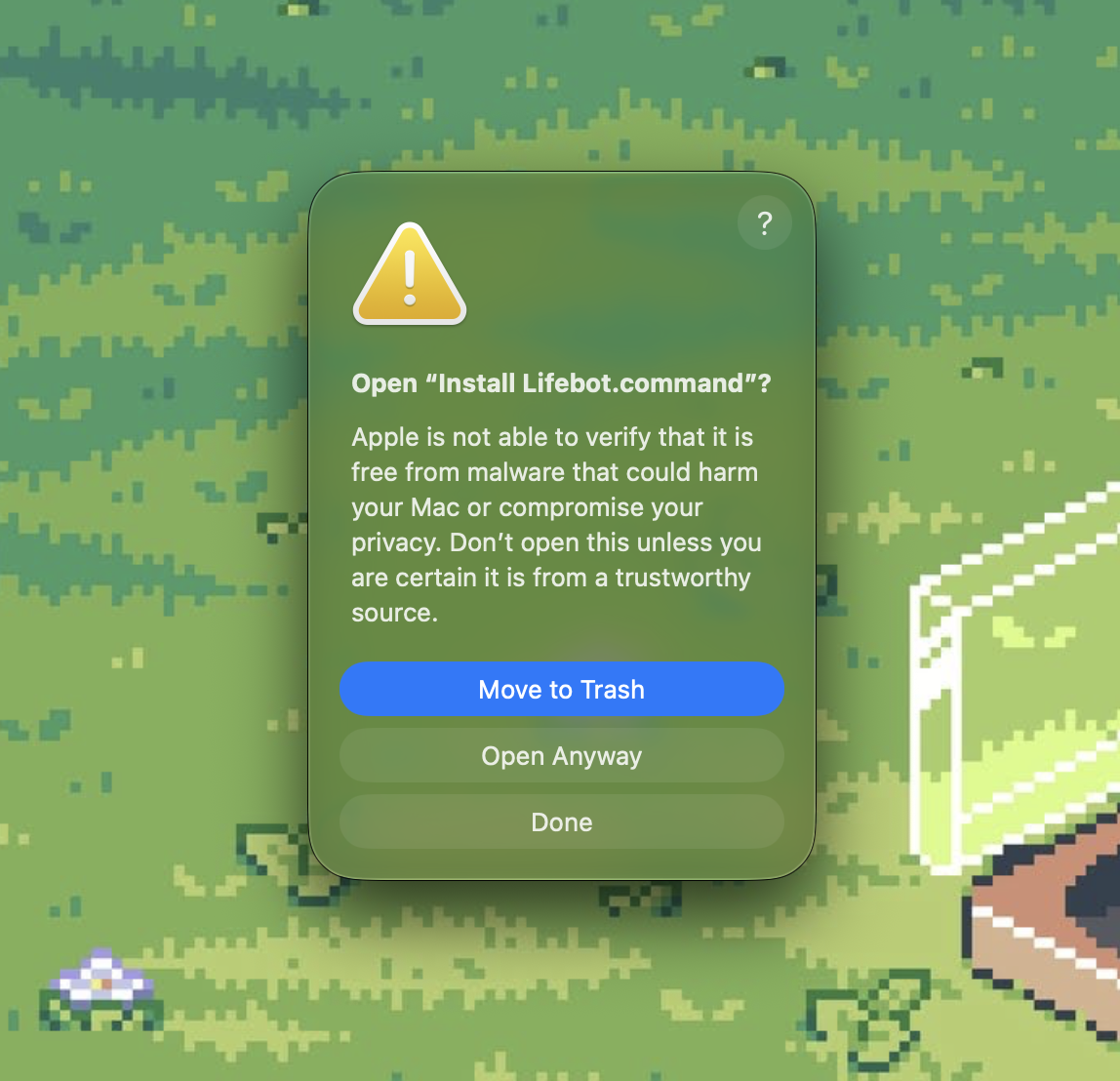
- Click Open Anyway, then Open Anyway again in the box that appears, and confirm with your password or Touch ID.
Watch: allow the installer in System Settings · 0:32
Allow the installer in System Settings · 0:32 Rather skip the warning? Open Terminal (press
⌘ Command+Space, type Terminal, pressReturn). Typebashand a space, dragInstall Lifebot.commandinto the Terminal window, and pressReturn. Starting it this way doesn't trigger Gatekeeper at all.Watch: drag the installer into Terminal · 0:15
Drag the installer into Terminal · 0:15 Install Lifebot 2–5 mins
A Terminal window opens, and the installer starts.
View the Terminal installation
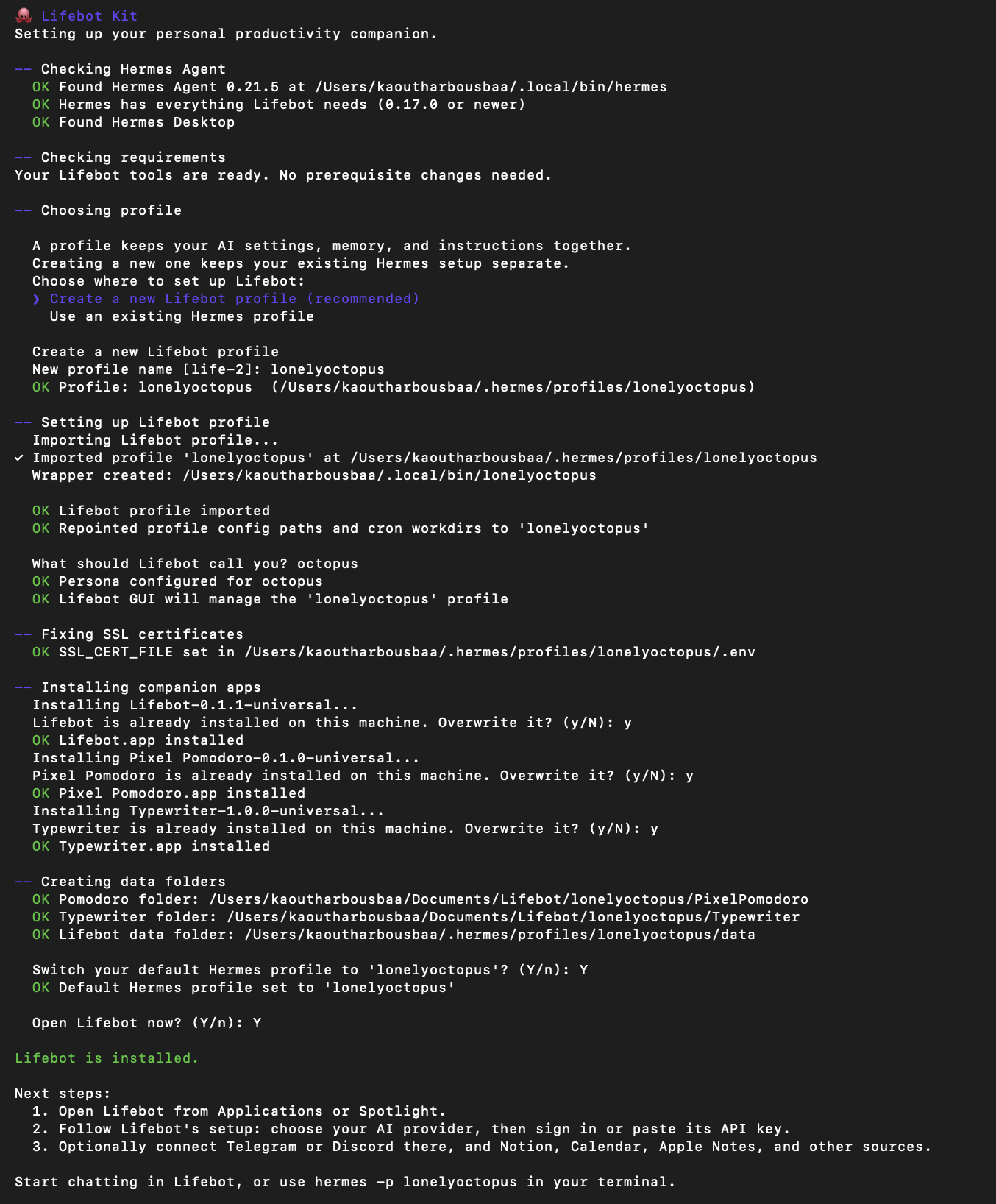
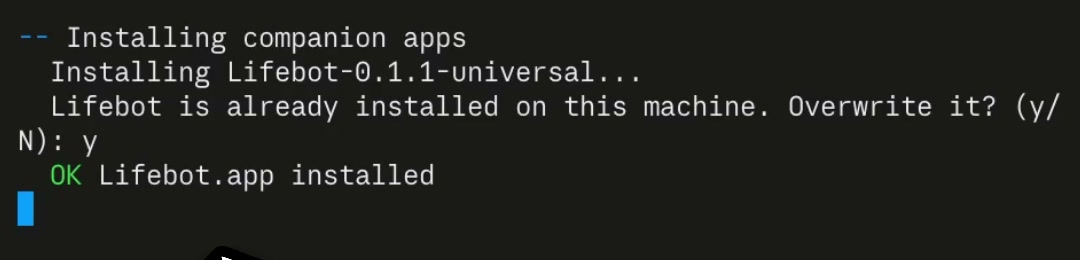
Follow the instructions in the Terminal. We recommend selecting y whenever it asks you something.
If macOS asks for permission to access your Downloads or Documents folder, click Allow. Lifebot, Pixel Pomodoro, and Typewriter keep their files in Documents/Lifebot.
Open Lifebot
When the installer finishes, Lifebot opens on its own. You can close the Terminal window.
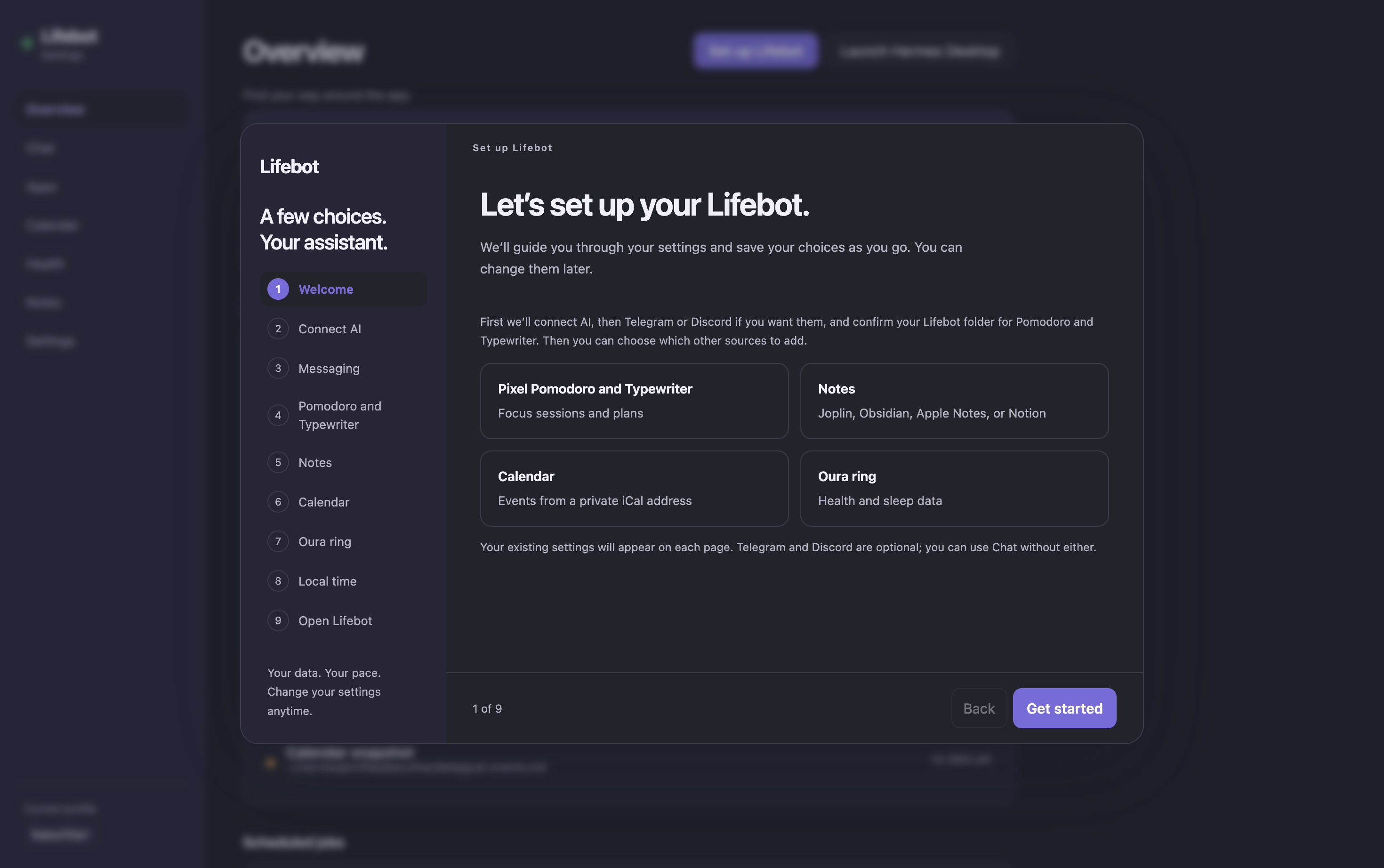
From here, the wizard walks you through getting set up: connecting an AI, and anything else you want Lifebot to read.
Option 2: Use a coding agent
Example shown: Claude Code on macOS.
1. Ask the coding agent to install Lifebot.
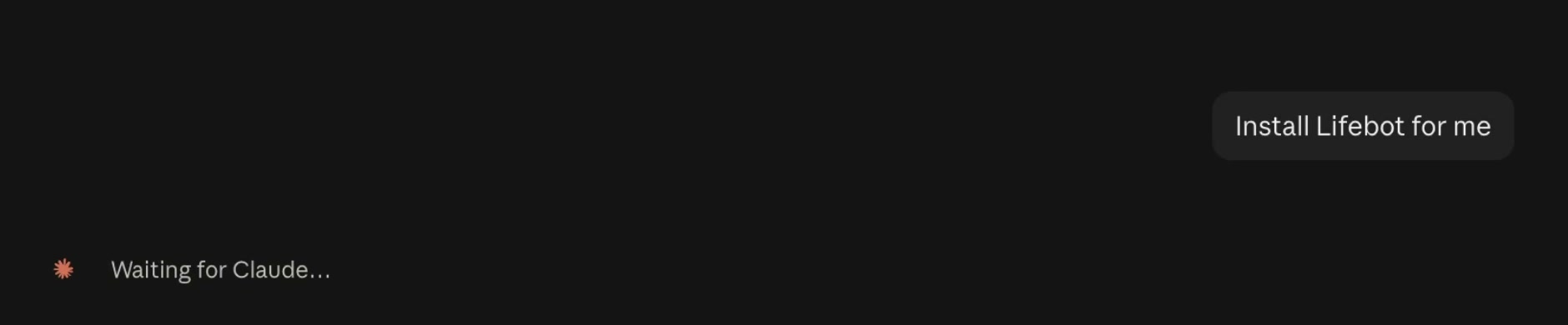
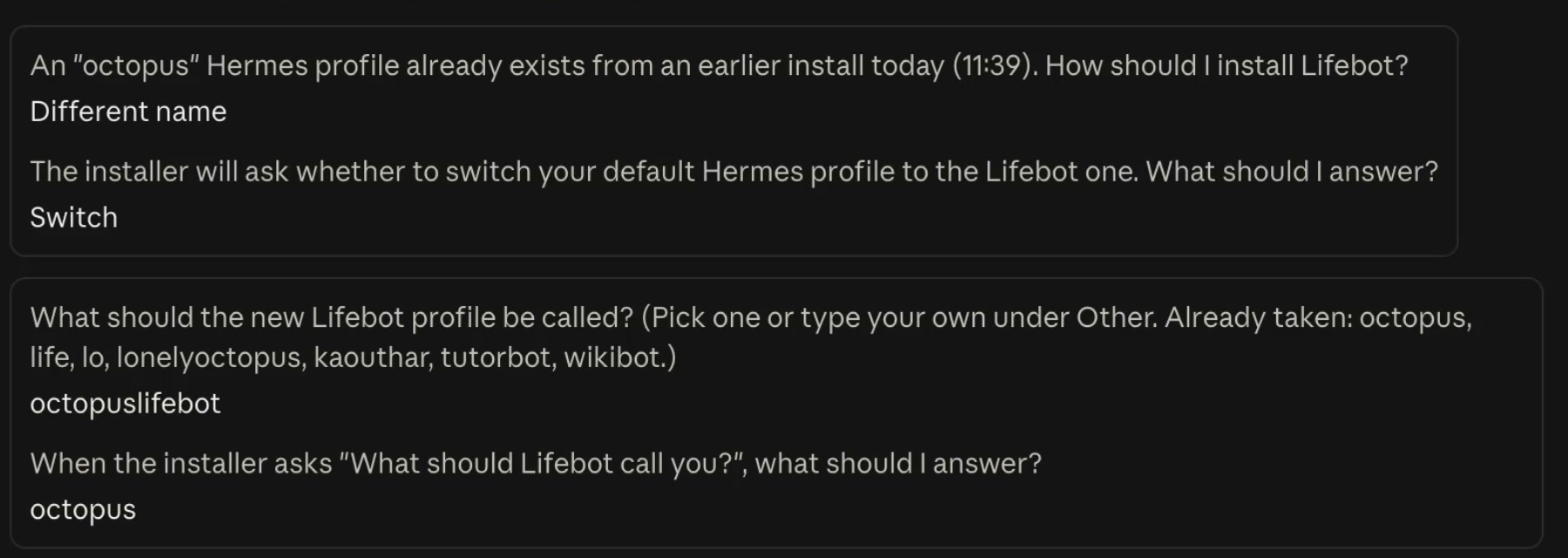
2. Answer the profile and name questions.
3. Follow the live installer prompts.
Install on Windows
Option 1: Install on Windows
Install Hermes 5 mins
Download Hermes Desktop from hermes-agent.nousresearch.com/desktop. It's free. Open it and let it finish setting up. If Hermes offers to set up a model, you can do it now or skip it; Lifebot asks you again in its own setup.
Unblock and unzip the download 1 min
Right-click
lifebot-kit-windows.zip→ Properties. If you see This file came from another computer… at the bottom, tick Unblock and click OK. This tick prevents most of the warnings in the next step.Then right-click the zip again → Extract All → Extract. Open the new
lifebot-kitfolder.Run the installer 2–5 mins
Double-click
Install Lifebot.cmd. Windows may show one of these warnings because the kit isn't signed by a big publisher:- "Windows protected your PC" (a blue box): click More info, check it says
Install Lifebot.cmd, then click Run anyway. - "Open File – Security Warning" with The publisher could not be verified: click Run.
- "Windows protected your PC" (a blue box): click More info, check it says
Follow the setup wizard
Lifebot opens on Let's set up your Lifebot. Later, open Lifebot, Pixel Pomodoro or Typewriter from Start → Lifebot.
Smart App Control. Some Windows 11 PCs have Smart App Control turned on. It can block unsigned apps with no "Run anyway" button. If that happens, the kit can't run on that PC until there's a signed release. Windows lets you turn Smart App Control off in Windows Security → App & browser control, but on some versions of Windows it can't be switched back on without reinstalling Windows, so think it over before you do.
Option 2: Use a coding agent
Example shown: Claude Code on macOS.
1. Ask the coding agent to install Lifebot.
2. Answer the profile and name questions.
3. Follow the live installer prompts.
Install on Linux
Works on 64-bit Ubuntu, Debian and Fedora. Install Hermes first, then Lifebot. The Lifebot installer doesn't install Hermes for you. On other distributions, also install Python 3 and the libraries the apps need, if they're missing.
Install Hermes
Download Hermes Desktop from hermes-agent.nousresearch.com/desktop. It's free. Open it and let it finish setting up. Prefer the command line? Use the official install guide.
Unzip the download
Right-click
lifebot-kit-linux.zipand choose Extract Here. Or, in a terminal in the same folder:unzip lifebot-kit-linux.zip
Open a terminal in the folder
Open the
lifebot-kitfolder, right-click an empty spot, and choose Open in Terminal.Start the installer
bash install.sh
Starting it with
bashworks even if unzipping didn't keep the file's permission to run.Answer a few questions
Press
Enterto accept each suggestion. If the apps need libraries your system doesn't have, the installer asks before adding them. If you're asked for a password, type your computer password (it stays invisible) and pressEnter. The apps are installed in~/Applicationsand added to your applications menu, and Lifebot opens at the end.
Good to know
- It's safe to run again. If setup stops partway, start it again the same way. It keeps what's already done and never overwrites your own files.
- Keep the folder together. The installer needs everything in
lifebot-kit, including thesupportfolder. - Leave the window open until you see Lifebot is installed. Closing it stops setup, but you can start again.
- What's a profile? A folder that keeps Lifebot's AI settings, memory and instructions together, at
~/.hermes/profiles/life(Windows:%LOCALAPPDATA%\hermes\profiles\life).
Every day
Open Lifebot
The installer opens Lifebot for you the first time. After that:
| Computer | How to open Lifebot, Pixel Pomodoro or Typewriter |
|---|---|
| Mac | Press ⌘ Command + Space, type Lifebot, press Return. Or open it from the Applications folder. Tip: right-click its Dock icon → Options → Keep in Dock. |
| Windows | Start menu → Lifebot folder → Lifebot, Pixel Pomodoro or Typewriter. |
| Linux | Your applications menu, or ~/Applications/Lifebot.AppImage. |
| From Lifebot | The Apps tab has Open Pixel Pomodoro and Open Typewriter buttons. |
Help & FAQ
If something looks unexpected
Most hiccups are quick to fix. Starting the installer again is always safe.
Mac "Install Lifebot.command" can't be opened, or Apple can't verify it
That's Gatekeeper. Use System Settings → Privacy & Security → Open Anyway (Mac step 4), or start it from Terminal with bash and a space, then drag the file in.
Mac An app says it's "damaged" or "can't be opened"
Run the installer again and let it replace that app (type y at Overwrite). Or, in Terminal, clear the download flag yourself, then open the app again:
xattr -dr com.apple.quarantine "/Applications/Lifebot.app"
Mac Terminal says "No such file or directory"
The file's location didn't paste correctly. Type bash and a space again, then drag the file from the unzipped lifebot-kit folder (not the zip) into the window.
Mac The Lifebot window shows raw text and no styling
Lifebot was open while it was being reinstalled. Quit it (⌘ Command + Q) and open it again.
Windows "Windows protected your PC"
Click More info, check the app name is Install Lifebot.cmd, then Run anyway. Next time, tick Unblock in the zip's Properties before extracting.
Windows "Starter profile archive missing" or "Windows app archives missing"
The installer was started from inside the zip, or the support folder was moved. Right-click the zip, choose Extract All, and start it from the extracted folder.
Windows "Close these Lifebot apps before updating"
Quit Lifebot, Pixel Pomodoro and Typewriter, then run the installer again.
Linux An app won't open
Read ~/.local/state/lifebot/launch.log for the startup error. Some Linux systems are missing a small library the apps need. On Ubuntu 24.04 or newer, run the first line below. On older Ubuntu, run the second.
sudo apt install libfuse2t64
sudo apt install libfuse2
All My password doesn't show up when I type it
That's on purpose, so no one can see it over your shoulder. Type it and press Enter.
All "Hermes Agent was not found on this computer"
Say Y to open the Hermes website. Install Hermes (Mac step 1, Windows step 1 or Linux step 1), then run the installer again. If Hermes Desktop is already installed, open it once and let it finish setting up.
All "The hermes command at … is not Hermes Agent"
Another program named hermes comes first on your computer. Install Hermes Agent, make sure it comes first on your PATH, then run the installer again.
All "Lifebot doesn't support a custom HERMES_HOME yet"
Remove the HERMES_HOME setting, or set it to ~/.hermes (Windows: %LOCALAPPDATA%\hermes). Then run the installer again.
All "Lifebot is built for … or newer"
Setup continues. If something doesn't work, run hermes update. If the installer says Hermes is missing something Lifebot needs, run hermes update, then start the installer again.
All Setup stopped with a message
Read the last few lines in the window. They say what to do next, for example connecting to the internet or updating Hermes. Then start the installer again. Your progress is kept.
All I already use Hermes. Will this mess up my setup?
No. The installer suggests a new profile, so your existing Hermes profile, keys and memory stay as they are. It never overwrites your own files.